I built a WASI playground and you can run FFmpeg in it, which is cool
Originally posted on runno.dev ↗ffmpeg is a program used in commandlines everywhere for converting video and
audio files to different formats. It’s a great candidate for compiling to WASM
because it’s very difficult to re-write in JavaScript. It also makes for a great
demo, being non-trivial and doing neat stuff with videos. In this article I’ll
show you how you can use the Runno WASI Playground to
run a WASI binary version of ffmpeg.
Also I built the playground last month but lets do the cool demo stuff and not talk about that.
What even is WASI?
I’m going to use the word WASI a lot in this article, so you should probably
know what it means. The WebAssembly System Interface (WASI) is a standard
(see: wasi.dev) for giving WebAssembly binaries access to
system resources. By itself a WebAssembly binary is not able to call out to the
“host” system without being provided with an interface. WASI defines a standard
set of functions, like fd_read, and args_get, that are
similar enough to POSIX standards that many system-level programs can be
compiled without major changes.
A cool demo where we run ffmpeg in the playground
To explore how WASI works I’ve built a playground on the Runno website where you can upload WASM files that have been compiled for WASI, and then run them. It’s pretty straightforward and works a lot like a terminal.
Open it up now and have a squiz: Runno WASI Playground.
![Explanation of the WASI Playground]](./playground-explanation.png)There’s some demos over there that you can try out, but this demo is cooler.
Alright, let’s get to it. We’re going to run ffmpeg in the playground. The
playground that you are now heaps familiar with. You definitely clicked the
link, right?
1. Download ffmpeg
To start we’ll need a WASI binary of ffmpeg. There’s no official WASI release of ffmpeg, but there are a few people who have compiled it anyway. There’s a really easy to use repo on github that SebastiaanYN has put together using docker. But you don’t need to run any of them, because I already have, and the whole point of WebAssembly is that it’s portable. That means once you’ve got a binary, you can run it anywhere.
Here’s a link to the binary I built. Right click it and save it.
2. Choose ffmpeg.wasm in the file picker
To use it, open the Runno WASI Playground and select
“Choose binary file…”. Then select the ffmpeg.wasm file you just
downloaded. When you click Run you should see information about FFmpeg:
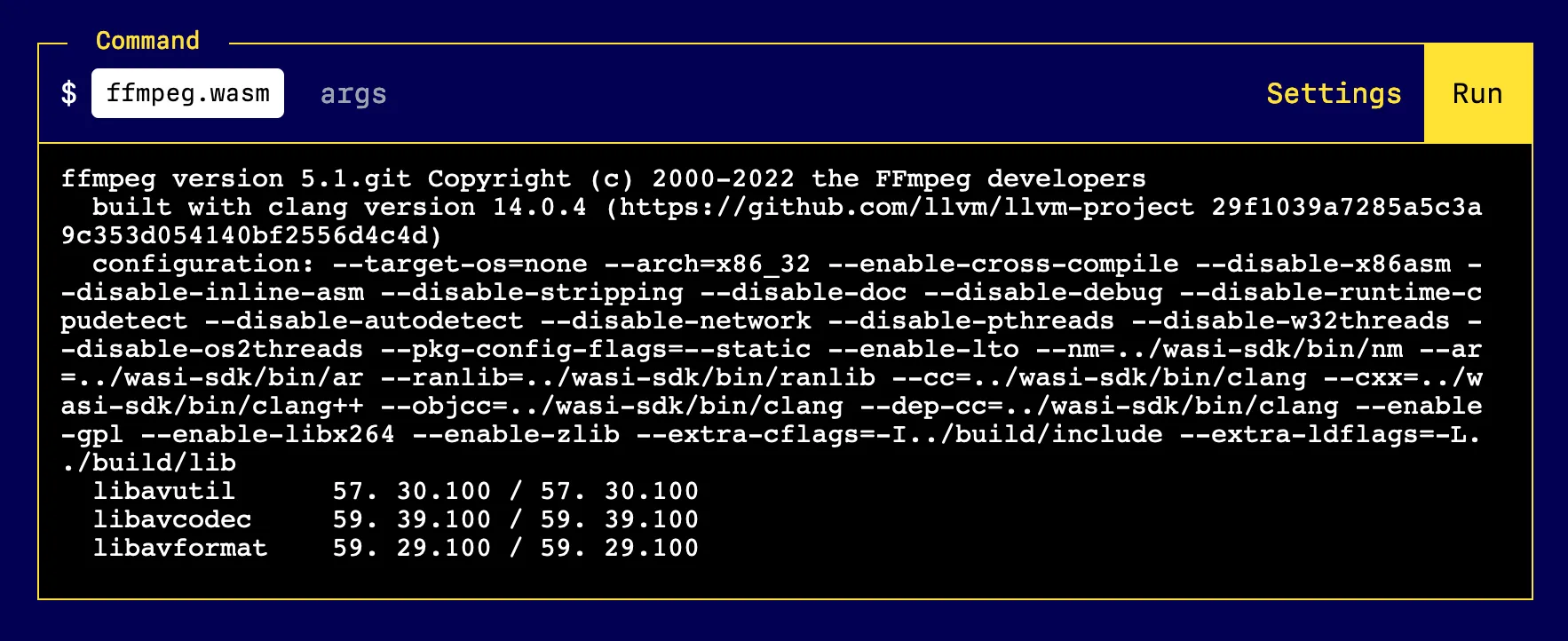
That’s the real ffmpeg running right there in your browser, and we’re only on
step two!
3. Adding a video to the virtual file system
The WASI playground lets you add files from
your local filesystem into the browser’s memory. This will then be supplied to
the WASI execution environment as part of a virtual file system. You’ll need a
video to use. If you don’t have an mp4 of your own, you can use the Serenity
trailer that I’ve been using to
test it out.
To add the file, click “Add files…” and select your video file. Here I’ve
added serenity.mp4:
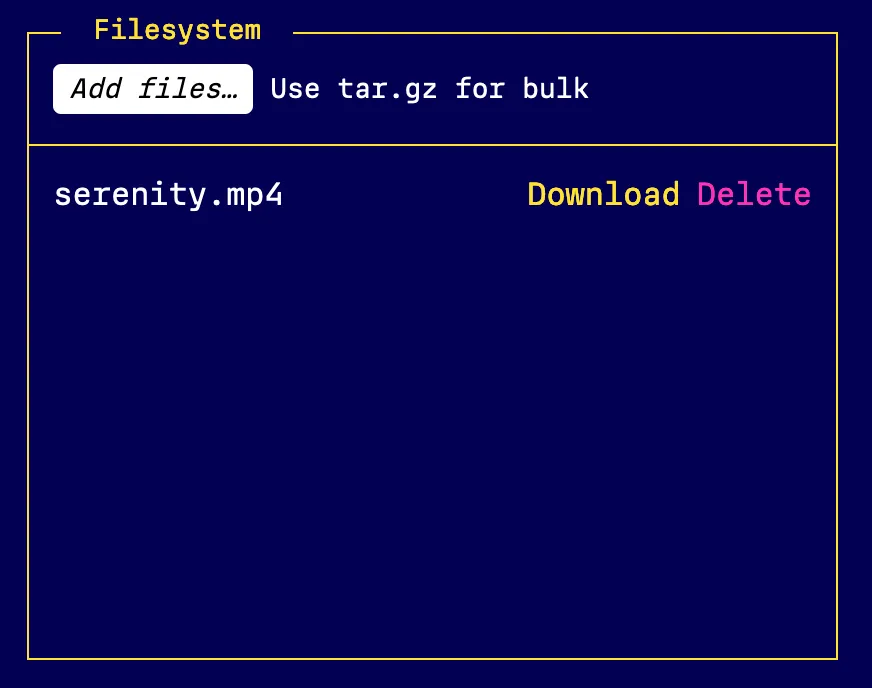
If you want to edit the name of the file, you can click the filename and then edit it directly.
4. Running a command in the playground
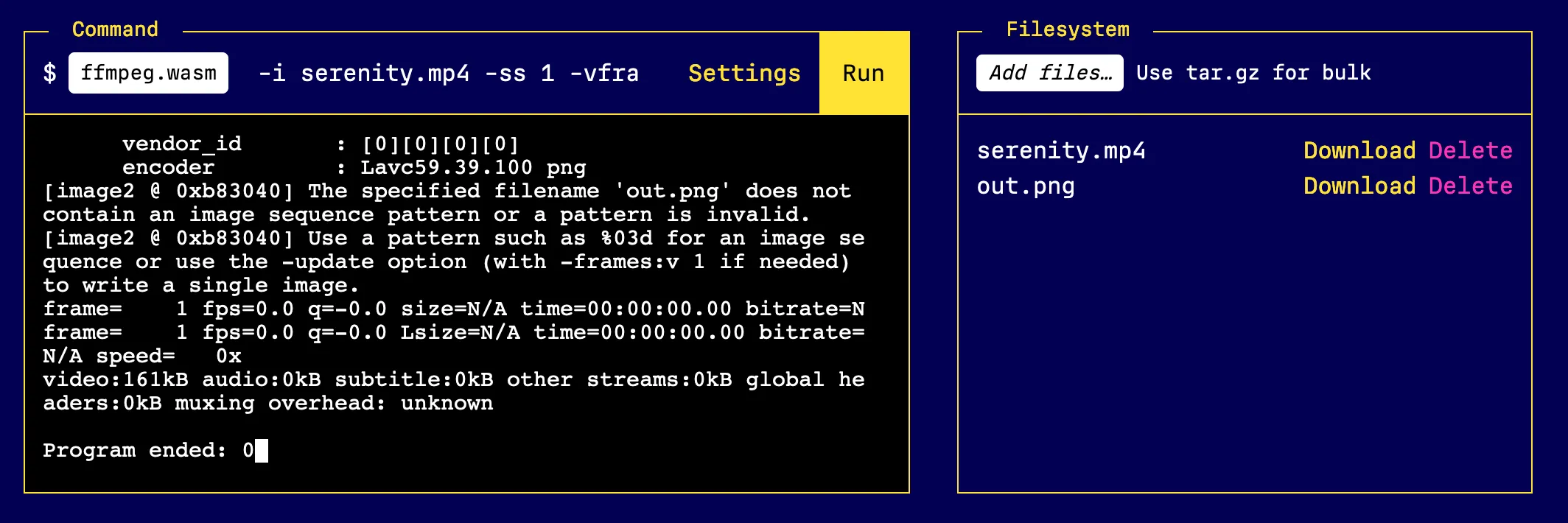
A simple demo command is extracting a single frame of a video as an image. The args to do that are:
-i serenity.mp4 -ss 1 -vframes 1 out.pngCopy those args into the playground and press Run.
Once you’ve run that command, you’ll see the output come through in your filesystem. Like so:
5. Download the file from the virual filesystem
To get the frame from the video, you can click the “download” link next to the
out.png file in the filesystem. You’ve just got a frame out of a video, all
from your browser, all running locally!

Unfortunately the frame is not very exciting, it’s just the motion picture approval. Great colour though.
6. Modifying the args to get a better still
Let’s adjust the ss argument to get a different part of the video. At 38
seconds in there’s a good shot of the crew so let’s use -ss 38 and click run
again.
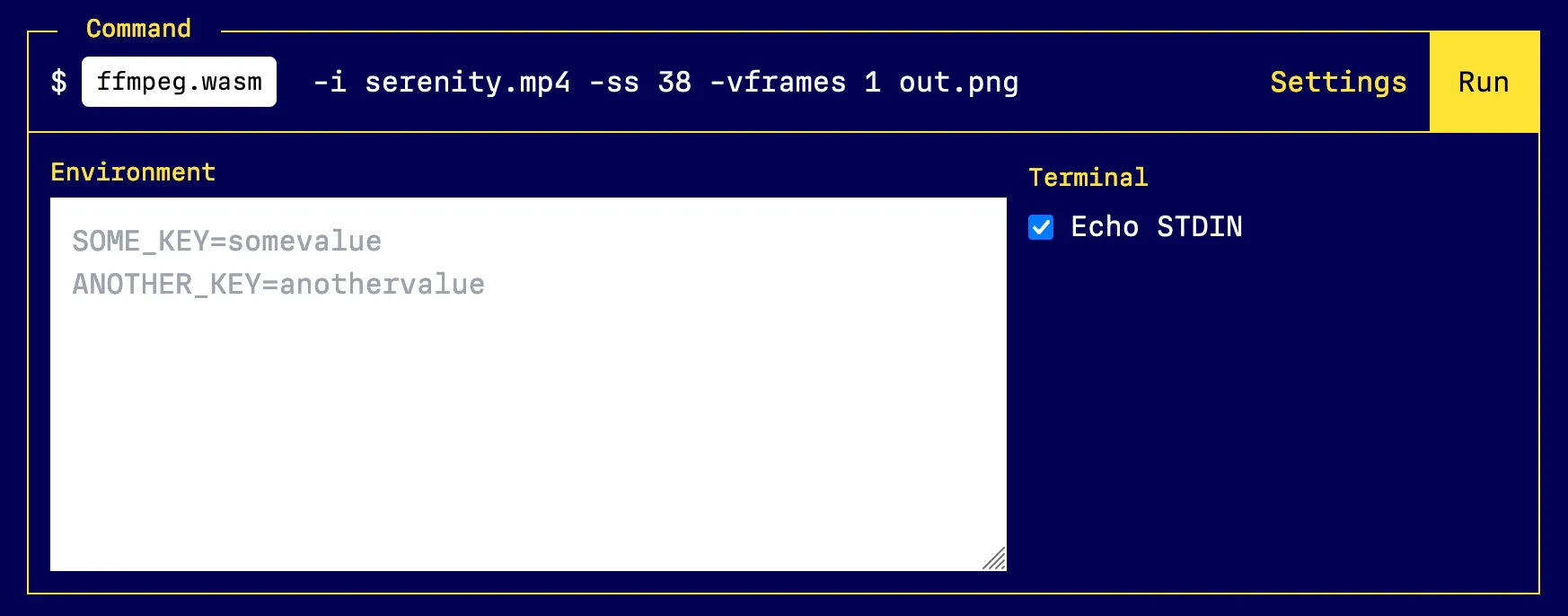
When you click run this time, you’ll get a prompt asking you to confirm
overwriting the existing out.png file. When you press y you won’t see
anything on the screen, that’s because ffmpeg is expecting the shell to handle
echoing your input back to you. The playground doesn’t do that by default.
To emulate it, click “settings” and tick “Echo STDIN”:
Now when you type y you’ll see it echo out:
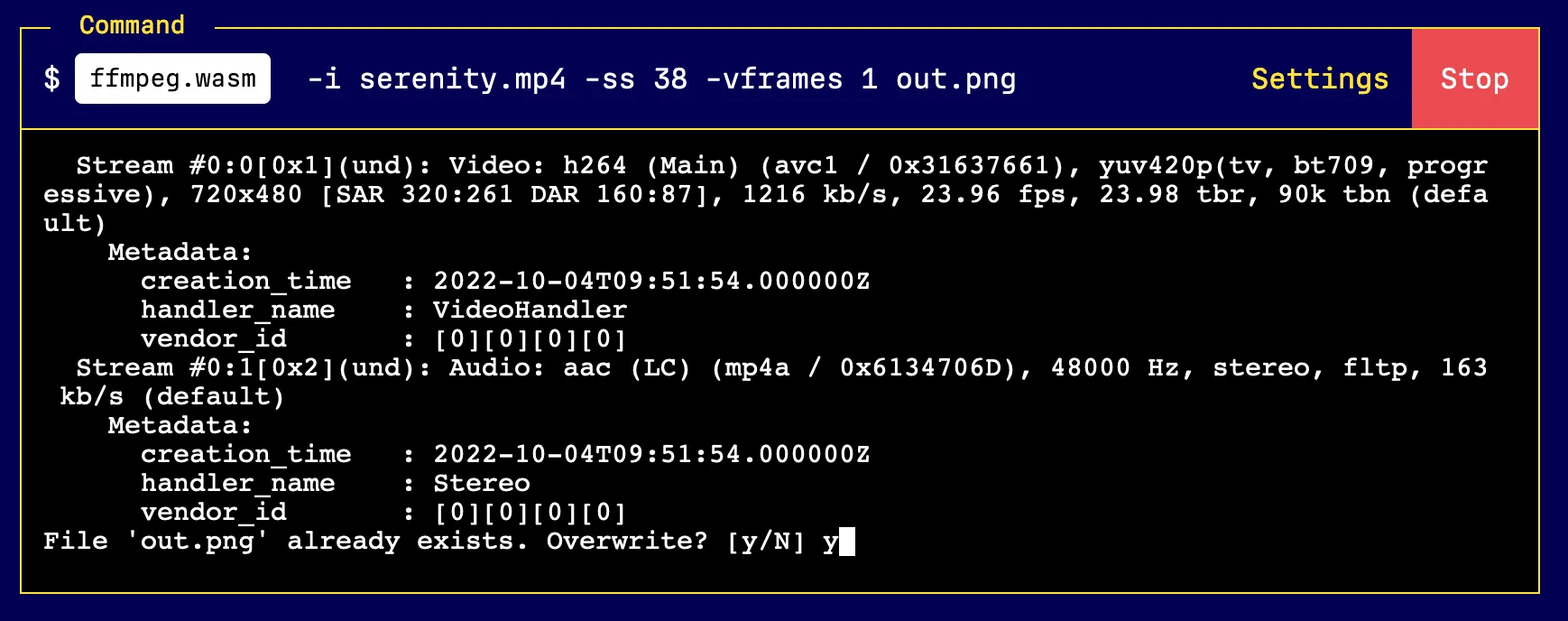
More importantly, you’ll now get a much better frame of the video back as your
out.png file:

7. Doing a big celebration and sharing this article with your friends
And there you have it, you’ve taken FFmpeg compiled to WASM/WASI and then used that binary to manipulate a video file, all in the browser. Wow! That’s super neat. You definitely want to show that to your friends. They’ll think you’re smart and interesting.
WASI vs Emscripten
Keen observers may note that there is a relatively mature ffmpeg.wasm project already. This project is extremely cool, but works in a similar but different way. It’s an npm package that uses Emscripten under the hood. Emscripten is a compatibility toolchain that aims for browser support. There’s a bunch of supporting JavaScript that is required to make it work, and the authors have provided a rather nice API to tie it all together.
WASI is different. Emscripten tries to simulate the linux environment and
specialises in browser support. WASI doesn’t provide any JavaScript or browser
support. Instead it is a standard for how to write an environment that can run
system binaries that bind to the WASI api. What’s neat about this is that the
binaries remain portable. Above we used the Runno WASI playground, but we could
just as easily run the ffmpeg.wasm binary using another WASI runtime. Install
Wasmtime and you can run the same command:
wasmtime --dir . ffmpeg.wasm -- -i serenity.mp4 -ss 1 -vframes 1 out.pngAnd it will give you the same output. Isn’t that wild!
Why WASI is so neat
I’ve built the WASI playground based off my experiments with building a new WASI runtime for Runno. Some background: in 2021 I wrote a tool called Runno that lets you run snippets of code in the web browser. It combined a few different pieces, but one piece I really fell in love with was WASI.
The idea that you could build a binary once, and then run it anywhere, is still a fantasy in 2022. The closest thing we have is literally the web. When people want to make cross-platform applications, they just build websites and then package them up with a whole web browser, it makes no sense!
As a developer I seem to be compiling things all the time, and I don’t know why. I just want to install some dependencies and not have to build frickin perl from source to do it.
Here you can see that promise starting to come together. This ffmpeg binary
doesn’t need to be recompiled for different architectures or systems. You could
run it locally on your machine, run it on a server in the cloud, run it on an
Arduino, or as I’ve demonstrated here, run it inside a browser.
That’s pretty neat.